
Setting up a webhook has two halves: adding the webhook to a channel in the Chatmo dashboard, and building the endpoint on your own server that receives the events. This page covers both.
Create the webhook in Chatmo
This part walks through adding a webhook from the dashboard. For what your own server needs to implement to receive it, see Build your endpoint below.
1. Open the Webhook module
Go to Integrations in the sidebar, then open the Webhook card.
- If this is your first webhook, the card shows Connect.
- If you already have one or more webhooks, it shows Manage Integration.
Both take you to the same place — the webhook list for your organization.
2. Click Add Webhook
On the Webhook page, click Add Webhook. A form opens with the following fields:
| Field | Description |
|---|---|
| Channel | The channel this webhook listens to. Search by name — any connected channel (WhatsApp Official, WhatsApp Unofficial, Instagram, Facebook Messenger, Telegram, or Webchat) is eligible. |
| Webhook Name | An internal label so you can tell your webhooks apart — this is never sent to your endpoint. |
| Webhook URL | The https:// URL Chatmo will POST events to. |
| Advanced: Custom Headers | Optional key/value pairs sent with every request, e.g. your own Authorization header. See Authentication & Security. |
| Event Types | Which events this webhook receives. Grouped by category, with events your selected channel doesn't support greyed out. |
| Include raw provider payload | Off by default. Adds a raw_payload field to every delivery, carrying the payload Chatmo received from the channel — mainly useful to access a media message's actual file. See Payload Examples. |
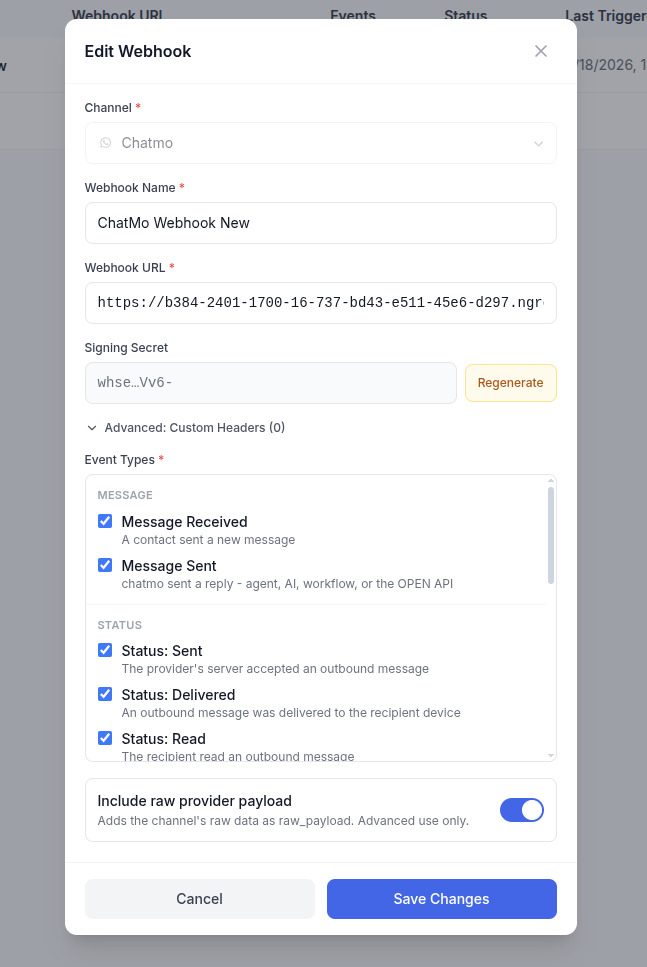
:::tip Picking event types Only select events you'll actually consume. Fewer subscriptions means fewer deliveries to process — and if your channel doesn't support an event (for example, Telegram has no delivery-status webhook), it's disabled in the list so you can't select it by mistake. :::
3. Save and copy the signing secret
When you click Create Webhook, Chatmo generates a unique signing secret for this endpoint and shows it to you once. Copy it now — you'll need it to verify incoming requests (see Authentication & Security), and it is never shown again in full.
If you lose it, open the webhook's Edit panel and click Regenerate to issue a new one. Regenerating immediately invalidates the old secret.
4. Verify it's working
Use the Test button (the flask icon) on the webhook row to send a sample payload for any of its subscribed events right now, without waiting for a real one to happen. See Testing & Delivery Logs.
Managing an existing webhook
From the webhook list you can:
- Edit — change the name, URL, custom headers, or event subscriptions.
- Test — send a one-off sample event.
- View Logs — see every delivery attempt, filterable by status, HTTP status code, event type, and date range.
- Activate / Deactivate — pause deliveries without deleting the configuration.
- Delete — remove the webhook permanently.
:::warning Auto-disable on repeated failures If a webhook fails 20 deliveries in a row, Chatmo automatically deactivates it and emails the organization owner — this stops a dead endpoint from being retried forever. Fix the endpoint, then switch it back to Active from the Edit panel. :::
Build your endpoint
A webhook endpoint is just an HTTP route on your own server that accepts a POST request. This part covers what it needs to do to receive Chatmo events correctly.
Minimum requirements
Your endpoint must:
- Accept
POSTrequests over HTTPS. Plain HTTP is technically accepted but strongly discouraged — the payload can contain message content and contact details. - Read the raw request body before verifying the signature (see Authentication & Security) — some frameworks parse JSON before your handler runs, which can change the exact bytes the signature was computed over.
- Respond quickly. Chatmo waits up to 10 seconds for a response before treating the attempt as failed and scheduling a retry. Don't do slow work (calling other APIs, heavy processing) inside the request handler — acknowledge first, process after.
- Return a
2xxstatus code on success. Any other status — or no response within the timeout — is treated as a failed delivery and queued for retry.
:::tip Acknowledge, then process
The most common webhook mistake is doing all the real work synchronously inside the handler. Instead, validate the signature, push the payload onto a queue or background job, and return 200 immediately. Do the actual processing (writing to your database, calling other systems) outside the request/response cycle.
:::
A minimal endpoint
Code
See Sample Code for signature verification in cURL, Node.js, Python, PHP, and Go.
Handling non-retryable responses correctly
Chatmo treats 401, 403, and 410 as non-retryable — it assumes your endpoint's auth is broken or the URL is intentionally gone, and stops retrying that delivery immediately instead of burning through the retry budget. Reserve those status codes for exactly that:
| You return | Chatmo does |
|---|---|
2xx | Marks the delivery successful. |
401 / 403 | Marks the delivery failed immediately — does not retry. Use this only when the signature genuinely doesn't match. |
410 | Marks the delivery failed immediately — does not retry. Use this if the endpoint is permanently retired (Chatmo won't stop sending on its own; deactivate the webhook from the dashboard instead). |
Anything else (5xx, 429, timeout, connection error) | Retries with backoff — see Retries & Delivery Guarantees. |
If your endpoint is only temporarily unable to process a request (a deploy in progress, a downstream dependency down), return a 5xx — that tells Chatmo to retry, which is what you want.
Idempotency
Every delivery carries a unique X-Chatmo-Delivery-Id header. If your endpoint receives the same delivery ID twice (a retry that succeeded on your end but the response was lost in transit, for example), treat the second one as a no-op. Store processed delivery IDs for a reasonable window and check against it before acting on an event a second time.
Checklist before going live
- Endpoint is reachable over HTTPS from the public internet
- Signature verification uses the raw request body, not a re-serialized JSON object
- Handler responds within a few seconds, real work happens asynchronously
-
401/403/410are only returned when genuinely appropriate - Delivery IDs are deduplicated on your side
- You've sent a test event for each event type you subscribed to and confirmed it arrived correctly