
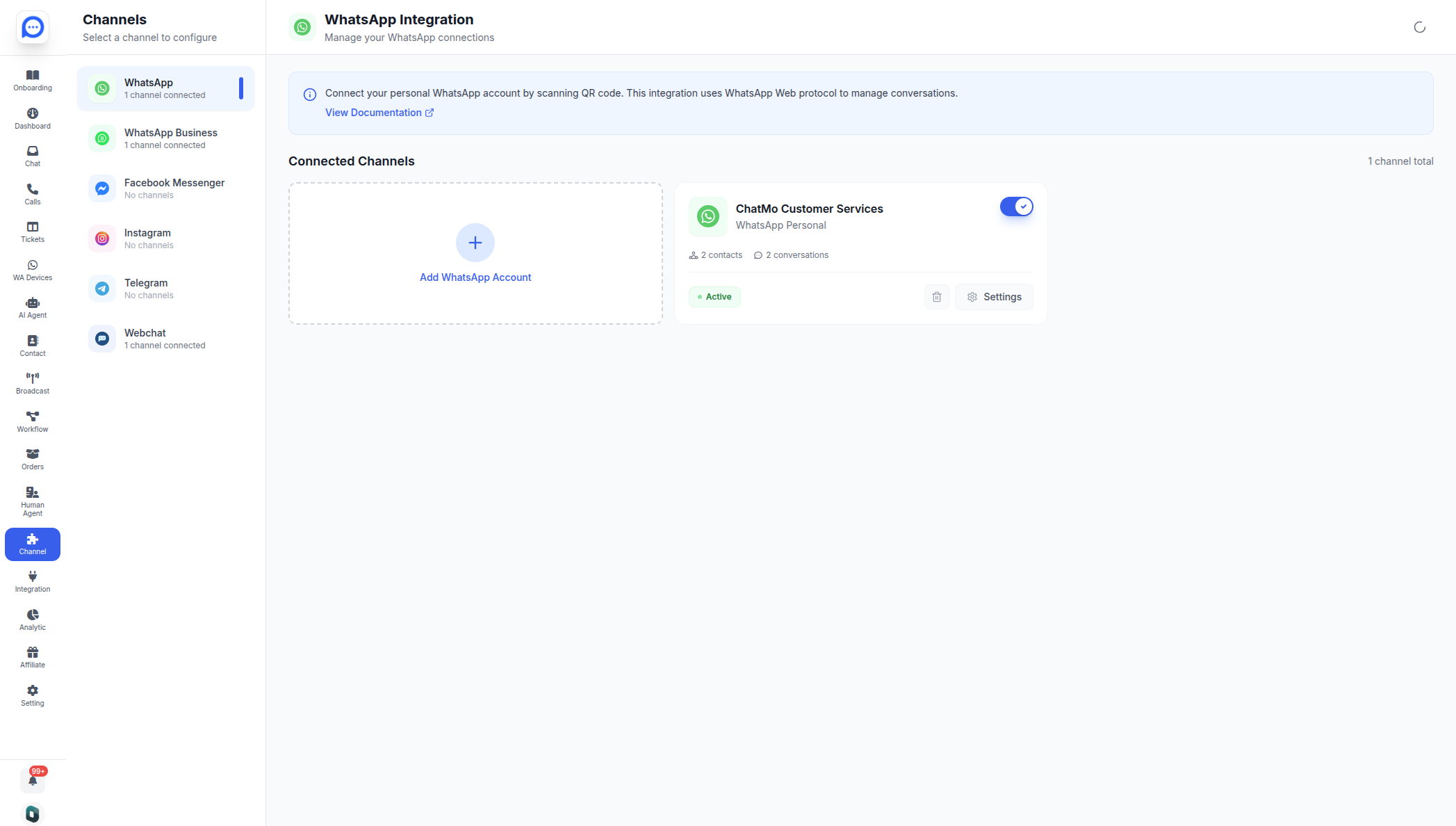
Channels are the messaging platforms your customers use to reach you. Chatmo connects to several popular channels, funneling every message into your unified inbox so your team can respond without switching between apps. You manage all channel connections from the Channel menu in the sidebar.
What Are Channels?
A channel in Chatmo represents a connection to an external messaging platform. When you add a channel, Chatmo establishes a link between your account on that platform and your Chatmo inbox. From that point on, any message sent to you on that platform appears in Chatmo, and any reply you send from Chatmo reaches the customer on their preferred app.
Think of channels as bridges. Your customers stay on the apps they already use -- WhatsApp, Instagram, Telegram, or your website chat -- while your team works exclusively inside Chatmo.
The Channel Page
All channel management happens through the Channel page. To access it, click Channel in the sidebar of your Chatmo dashboard.
Layout
The Channel page is divided into two sections:
-
Left sidebar -- Lists all available channel categories. Each category displays a connected/total count (e.g., "WhatsApp 1/3" means 1 out of 3 WhatsApp channels are currently connected). The six channel categories are:
- WhatsApp Business
- Facebook Messenger
- Telegram
- Web Chat
-
Main content area -- Displays the channel list for the currently selected category. The list is paginated with 10 channels per page. Each row shows the channel name, status, and connection details.

Adding a New Channel
- Open Channel from the sidebar.
- Select the channel category you want from the left sidebar (e.g., WhatsApp, Instagram).
- Click the Add button at the top of the channel list for that category.
- A creation form or modal will open. Fill in the required details specific to that channel type (covered in each channel's dedicated documentation page).
- Once connected, the new channel appears in the channel list and starts receiving messages immediately.
Viewing Channel Details
Each channel row in the list is clickable. Clicking on a channel row takes you to its detail and configuration page, where you can:
- View connection status and activity metrics
- Edit the channel name or label
- Configure auto-reply messages and assignment rules
- Set business hours for the channel
- Disconnect or remove the channel
Supported Channels
Chatmo currently supports six channels:
| Channel | Type | Description |
|---|---|---|
| WhatsApp (Unofficial) | Mobile messaging | Connect your personal WhatsApp number via QR code scanning. Quick setup, ideal for small teams. |
| WhatsApp Business API | Business messaging | Official Meta integration for businesses. Supports template messages, higher throughput, and is built for scale. |
| Social media DMs | Receive and reply to Instagram Direct Messages and story mentions. | |
| Facebook Messenger | Social media messaging | Manage conversations from your Facebook Page's Messenger. |
| Telegram | Messaging app | Connect a Telegram bot to handle customer conversations. |
| Web Chat | Website widget | A live chat widget you embed on your website for real-time visitor conversations. |
Feature Comparison by Channel
Not every channel supports the same set of features. This table gives you a side-by-side view:
| Feature | WA Business API | FB Messenger | Telegram | Web Chat | ||
|---|---|---|---|---|---|---|
| Text messages | Yes | Yes | Yes | Yes | Yes | Yes |
| Images | Yes | Yes | Yes | Yes | Yes | Yes |
| Videos | Yes | Yes | Limited | Yes | Yes | Yes |
| Documents/Files | Yes | Yes | No | No | Yes | Yes |
| Audio messages | Yes | Yes | No | No | Yes | Yes |
| Template messages | No | Yes | No | No | No | No |
| Quick reply buttons | No | Yes | No | Yes | Yes | Yes |
| Read receipts | Yes | Yes | Yes | Yes | No | Yes |
| Typing indicators | Yes | No | No | Yes | No | Yes |
| Broadcast | Yes | Yes | No | No | No | No |
| Auto-reply | Yes | Yes | Yes | Yes | Yes | Yes |
| AI Agent | Yes | Yes | Yes | Yes | Yes | Yes |
Feature availability may change as platforms update their APIs. Chatmo adds support for new capabilities as they become available on each platform.
How Multi-Channel Works
Here is what happens behind the scenes when you connect multiple channels:
- Customer sends a message on their preferred platform (e.g., WhatsApp).
- Chatmo receives it through the channel connection in real time and creates or updates a conversation in the inbox.
- Agent sees the message in the unified inbox, tagged with the channel icon.
- Agent replies from Chatmo. The response is routed back through the same channel.
- Customer receives the reply in their WhatsApp (or whichever app they used).
The customer never knows you are using Chatmo. To them, it feels like a normal conversation on their platform of choice.
Cross-Channel Scenarios
A single customer might reach out through different channels at different times. For example:
- Monday: They message your WhatsApp number about a product inquiry.
- Wednesday: They DM your Instagram page about the same topic.
In Chatmo, these show up as two separate conversations (one per channel). If the contact records are linked, agents can see both threads from the customer's profile, maintaining continuity even across channels. You can use the contact merge feature to unify these records.
Managing Channels
Viewing Connected Channels
- Click Channel in the sidebar.
- Select a channel category from the left sidebar to see all channels of that type.
- The list shows each channel's name, type, status (Connected, Disconnected, or Pending), and last activity timestamp.
- Use the pagination controls at the bottom to navigate through channels if you have more than 10.
Editing Channel Settings
Click on any channel row to open its detail page. Depending on the channel type, you can adjust:
- Channel name/label -- how it appears in the inbox
- Auto-reply messages -- configure automatic responses for first-time messages or off-hours
- Assignment rules -- route conversations from this channel to a specific team or agent
- Business hours -- define when the channel is "active" for auto-reply purposes
Disconnecting a Channel
If you no longer need a channel, you can disconnect it from the channel's detail page:
- Click Channel in the sidebar.
- Select the channel category, then click on the channel you want to remove.
- On the channel detail page, click Disconnect.
- Confirm the action.
Disconnecting a channel stops all message delivery on that platform. Existing conversations remain in your inbox for reference, but you will not receive new messages or be able to reply through that channel. Reconnecting later will resume message flow.
Choosing the Right Channels
Not sure which channels to set up? Consider where your customers already are:
- E-commerce businesses often see the most volume on WhatsApp and Web Chat.
- Brands with a social media following benefit from Instagram and Facebook Messenger integration.
- Tech-savvy audiences may prefer Telegram for its speed and bot capabilities.
- Any website should have Web Chat -- it captures visitors at the moment of highest intent.
Start with one or two channels and expand as your team gets comfortable with the workflow. Adding all six channels at once can overwhelm a small team. Master the basics first, then scale up.
Channel-Specific Limits
Each platform imposes its own rules and limits. Here are a few highlights:
| Channel | Key Limitation |
|---|---|
| WhatsApp (Unofficial) | Requires phone to stay online; risk of account restrictions |
| WhatsApp Business API | 24-hour messaging window; template approval required |
| Must link to a Facebook Business Page; message types limited | |
| Facebook Messenger | Page must be published; 24-hour standard messaging window |
| Telegram | Must use a bot (no personal account integration) |
| Web Chat | Widget only works on sites where you embed the code |
Detailed explanations of each channel's setup, capabilities, and limitations are available in their dedicated documentation pages.
Next Steps
Ready to connect your first channel? Open Channel from the sidebar and jump to the setup guide for the platform you want to start with: